Rules
Index
Overview
OPNsense contains a stateful packet filter, which can be used to restrict or allow traffic from and/or to specific networks as well as influence how traffic should be forwarded (see also policy based routing in “Multi WAN”).
The rules section shows all policies that apply on your network, grouped by interface.
There are two implementations to choose from:
Rules [new]: a modern MVC implementation with API support and improved rule management
Rules: a static PHP page with no API support
Tip
Rules [new] will replace Rules over time, you can already migrate your existing rules with a helper in .
The basics
Before creating rules, it’s good to know about some basics which apply to all rules.
States
By default rules are set to stateful (you can change this, but it has consequences), which means that the state of a connection is saved into a local dictionary which will be resolved when the next packet comes in. The consequence of this is that when a state exists, the firewall doesn’t need to process all its rules again to determine the action to apply, which has huge performance advantages.
Another advantage of stateful packet filtering is that you only need to allow traffic in one direction to automatically allow related packets for the same flow back in. Below diagram shows a tcp connection from a client to a server for https traffic, when not using stateful rules, both the client should be permitted to send traffic to the server at port 443 as the server back to the client (usually a port >=1024).
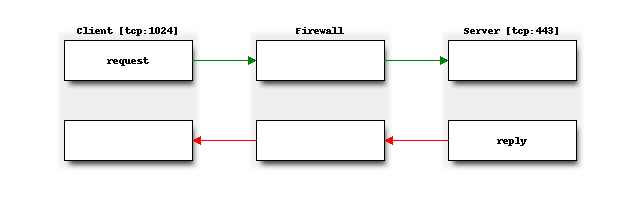
The use of states can also improve security particularly in case of tcp type traffic, since packet sequence numbers and timestamps are also checked in order to pass traffic, it’s much harder to spoof traffic.
Note
When changing rules, sometimes its necessary to reset states to assure the new policies are used for existing traffic. You can do this in .
Note
In order to keep states, the system need to reserve memory. By default 10% of the system memory is reserved for states, this can be configured in . (The help text shows the default number of states on your platform)
States can also be quite convenient to find the active top users on your firewall at any time, we added an easy to use “session” browser for this purpose. You can find it under .
Tip
States also play an important rule into protecting services against (distributed) denial of service attacks (DDOS). Relevant topics available in our documentation are “synproxy” states, connection limits and syncookies
Action
Rules can be set to three different action types:
Pass –> allow traffic
Block –> deny traffic and don’t let the client know it has been dropped (which is usually advisable for untrusted networks)
Reject –> deny traffic and let the client know about it. (only tcp and udp support rejecting packets, which in case of TCP means a
RSTis returned, for UDPICMP UNREACHABLEis returned).
For internal networks it can be practical to use reject, so the client does not have to wait for a time-out when access is not allowed. When receiving packets from untrusted networks, you usually don’t want to communicate back if traffic is not allowed.
Processing order
Firewall rules are processed in sequence per section, first evaluating the Floating rules section followed by all rules which belong to interface groups and finally all interface rules.
Internal (automatic) rules are usually registered first.

Rules can either be set to quick or not set to quick, the default is to use quick. When set to quick, the rule is
handled on “first match” basis, which means that the first rule matching the packet will take precedence over rules following in sequence.
When quick is not set, last match wins. This can be useful for rules which define standard behaviour.
Our default deny rule uses this property for example (if no rule applies, drop traffic).
Note
Internally rules are registered using a priority, floating uses 200000,
groups use 300000 and interface rules land on 400000 combined with the order in which they appear.
Automatic rules are usually registered at a higher priority (lower number).
Warning
NAT rules are always processed before filter rules! So for example, if you define a NAT : Destination NAT (Port Forwarding) rules without a associated rule, i.e. Filter rule association set to Pass, this has the consequence, that no other rules will apply!
Tip
The interface should show all rules that are used, when in doubt, you can always inspect the raw output of the ruleset in /tmp/rules.debug
Since and implementations exist side by side, there are some additional considerations regarding the processing order of rules.
If a filter rule has:
a single interface defined, it is an Interface Rule
a group interface defined, it is a Group Rule
any number of interfaces or one inverted interface defined, it is a Floating Rule
Processing order:
System defined rules at the beginning of the ruleset
and floating rules
and group rules
single interface rules
single interface rules
System defined rules at the end of the ruleset
Rule sequence
The sequence in which the rules are displayed and processed can be customized per section:
Select a rule with the checkbox on the left side of the rule.
Use the arrow button in the action menu on the right side of a rule in order to move selected rules before the rule where the action button is pressed.
While rules in are processed implicitly by the order they appear in the configuration file, implement a more explicit Sort order.
A Sort order will have this structure: 200000.0000250:
200000The Priority group, defines the hierarchy the rule belongs to. It can be influenced by the interface in a rule.
.0000250The Sequence, it defines the exact spot of the rule in context of the interface hierarchy. It can be influenced with the Sequence field inside a rule, or with the Move rule before this rule button.
As example, we create a few different rules:
200000.0000100(Floating rule)
200000.0000200(Floating rule)
300000.0000050(Group rule)
300000.0000060(Group rule)
400000.0002000(Interface rule)
400000.0003100(Interface rule)
When applying the filter, the rules will be processed in this Sort order. A lower sequence number inside the priority group means the priority is higher.
Note
The Sequence does not have to be unique, multiple rules can share the same number. Though what this means is that the filter is not populated as strictly in order as if all rules have a unique sequence.
Tip
When adding a new rule, the Sequence will be automatically populated with a unique number. You can either change this number manually to adjust the exact position of the rule, or use the Move rule before this rule button.
Direction

Traffic can be matched on in[coming] or out[going] direction, our default is to filter on incoming direction.
In which case you would set the policy on the interface where the traffic originates from.
For example, if you want to allow https traffic coming from any host on the internet,
you would usually set a policy on the WAN interface allowing port 443 to the host in question.
Note
Traffic leaving the firewall is accepted by default (using a non-quick rule), when Disable force gateway in is not checked, the connected gateway would be enforced as well.
Implementations
Rules [new]
Rules [new] started out as Firewall Automation with a limited GUI to offer API support, since the static php implementation of Rules lacked automation requirements. Over time, more features have been added, and the GUI has been completely reworked. Long requested features like advanced search functionality, category folders improved performance and better visibility are the result.
You can find it in or .
User Interface
Our overview shows all the rules that apply to the selected interface, group or floating section. For every rule, some details are provided and when applicable you can perform actions such as move, edit, copy, delete.
API access is described in more detail in the firewall API reference manual.
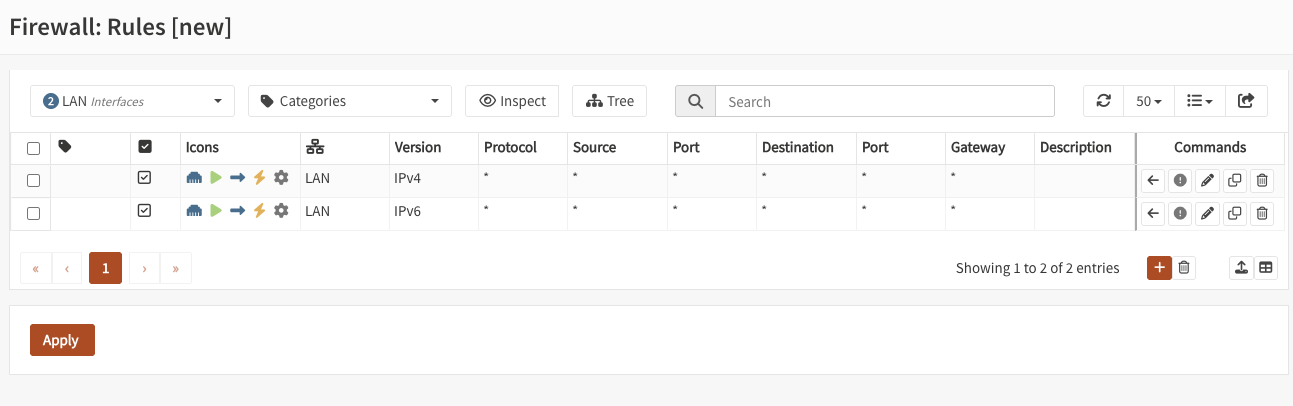
Interface filter
Choose an interface to filter the current view. Floating, group and single interfaces can be selected.
If you choose the “LAN” interface, you will be presented with all floating, group and single interface rules that influence packet decisions of the LAN interface.
If you create a new rule while having an interface selected, it will be automatically added to dialog.
Categories filter
Choose one or multiple categories to filter the current view. This combines with the selection of the interface filter.
Categories can be created in and can enable grouping different logic constructs.
If you create a category for mailservers and tag rules with it, you can simply filter for this tag and only see your mailservers. As with the interface filter, selecting one or multiple tags will add them automatically to a new rule.
Tree button
Group all firewall rules in a tree, based on their category. The groups act like folders, but always honor the sort order and sequence. The group folders are not saved inside the configuration, they are an alternative view based on categories.
Whenever a rule in sequence changes category, a new folder copying the category of the first rule will be created. To move similiar rules into the same folder, change their sequence and category. But keep in mind that the sequence of rules will always be the same as without the tree view.
Inspect button
The inspect button will reveal all system defined (automatic) firewall rules and show rule statistics. It can be enabled at any time to get a complete view of the current active ruleset.
While in inspect mode the search can find IP addresses inside aliases.
Rule statistics are cached. To pull the latest statistics, press the refresh button in the statistics column.
Settings
Option |
Description |
|---|---|
Enabled |
Enable this rule |
Sort order |
The order in which rules are being processed. |
Sequence |
The order in which rules are being processed. Please note that this is not a unique identifier, the system will automatically recalculate the ruleset when rule positions are changed with the available “Move rule before this rule” button. |
Categories |
For grouping purposes you may select multiple groups here to organize items. |
No XMLRPC Sync |
Exclude this item from the HA synchronization process. An already existing item with the same UUID on the synchronization target will not be altered or deleted as long as this is active. |
Description |
You may enter a description here for your reference (not parsed). |
Option |
Description |
|---|---|
Invert Interface |
Use all but selected interfaces |
Interface |
Select the interfaces that should match this rule. |
Option |
Description |
|---|---|
Quick |
If a packet matches a rule specifying quick, then that rule is considered the last matching rule and the specified action is taken. When a rule does not have quick enabled, the last matching rule wins. |
Action |
Choose what to do with packets that match the criteria specified below. Hint: the difference between block and reject is that with reject, a packet (TCP RST or ICMP port unreachable for UDP) is returned to the sender, whereas with block the packet is dropped silently. In either case, the original packet is discarded. |
Allow options |
This allows packets with IP options to pass. Otherwise they are blocked by default. |
Direction |
Direction of the traffic. The default policy is to filter inbound traffic, which sets the policy to the interface originally receiving the traffic. |
Version |
The IP protocol version that should match, e.g., IPv4 or IPv6. |
Protocol |
The transport protocol that should match, e.g., TCP or UDP. |
ICMP type |
If the transport protocol is ICMP, this option allows you to specify the ICMP types. |
ICMPv6 type |
If the transport protocol is IPV6-ICMP, this option allows you to specify the ICMP types. |
Invert Source |
Use this option to invert the sense of the match. |
Source |
The source IP address or alias that should match. |
Source Port |
Source port number or well known name (imap, imaps, http, https, …), for ranges use a dash |
Invert Destination |
Use this option to invert the sense of the match. |
Destination |
The destination IP address or alias that should match. |
Destination Port |
Destination port number or well known name (imap, imaps, http, https, …), for ranges use a dash |
Log |
Log packets that are handled by this rule |
TCP flags |
Use this to choose TCP flags that must be set this rule to match. |
TCP flags [out of] |
Use this to choose TCP flags that must be cleared for this rule to match. |
Schedule |
Rules can also be scheduled to be active at specific days or time ranges, you can create schedules in and select one in the rule. If the rule times out the states will be removed and the rule will be skipped. This means, if there is still a matching rule after the scheduled rule that allows the traffic, it will be used instead. Keep this in mind when using scheduled rules, and carefully build the ruleset around them, e.g., with additional block rules. |
Divert-to |
Send packets matching this rule to the service specified, when the service is not running, packets will be dropped. |
Option |
Description |
|---|---|
State type |
State tracking mechanism to use, default is full stateful tracking, sloppy ignores sequence numbers, use none for stateless rules. |
State policy |
Choose how states created by this rule are treated, default (as defined in advanced), floating in which case states are valid on all interfaces or interface bound. Interface bound states are more secure, floating more flexible. |
NO pfsync |
This prevents states created by this rule to be synced with pfsync. |
TCP established |
State Timeout in seconds (TCP only) |
UDP first |
The state timeout in seconds after the first UDP packet. |
UDP single |
The state timeout in seconds if both hosts have sent UDP packets. |
UDP multiple |
The state timeout in seconds if the source host sends more than one UDP packet but the destination host has never sent one back. |
Adaptive Timeouts [start] |
When the number of state entries exceeds this value, adaptive scaling begins. All timeout values are scaled linearly with factor (adaptive.end - number of states) / (adaptive.end - adaptive.start). |
Adaptive Timeouts [end] |
When reaching this number of state entries, all timeout values become zero, effectively purging all state entries immediately. This value is used to define the scale factor, it should not actually be reached (set a lower state limit). |
Max states |
Limits the number of concurrent states the rule may create. When this limit is reached, further packets that would create state are dropped until existing states time out. |
Max source nodes |
Limits the maximum number of source addresses which can simultaneously have state table entries. |
Max source states |
Limits the maximum number of simultaneous state entries that a single source address can create with this rule. |
Max source connections |
Limit the maximum number of simultaneous TCP connections which have completed the 3-way handshake that a single host can make. |
Max new connections [c] |
Maximum new connections per host, measured over time. |
Max new connections [s] |
Time interval (seconds) to measure the number of connections |
Overload table |
Overload table used when max new connections per time interval has been reached. The default virusprot table comes with a default block rule in floating rules, alternatively specify your own table here. |
Option |
Description |
|---|---|
Traffic shaper |
Shape packets using the selected pipe or queue in the rule direction. |
Traffic shaper [reverse] |
Shape packets using the selected pipe or queue in the reverse rule direction. |
Option |
Description |
|---|---|
Gateway |
Leave as ‘default’ to use the system routing table. Or choose a gateway to utilize policy based routing. |
Disable reply-to |
Explicit disable reply-to for this rule |
Reply-to |
Determines how packets route back in the opposite direction (replies), when set to default, packets on WAN type interfaces reply to their connected gateway on the interface (unless globally disabled). A specific gateway may be chosen as well here. This setting is only relevant in the context of a state, for stateless rules there is no defined opposite direction. |
Option |
Description |
|---|---|
Match priority |
Only match packets which have the given queueing priority assigned. |
Set priority |
Packets matching this rule will be assigned a specific queueing priority. If the packet is transmitted on a vlan(4) interface, the queueing priority will be written as the priority code point in the 802.1Q VLAN header |
Set priority [low-delay] |
Used in combination with set priority, packets which have a TOS of lowdelay and TCP ACKs with no data payload will be assigned this priority when offered. |
Match TOS / DSCP |
Only match packets which have the given TOS/DSCP marker. |
Option |
Description |
|---|---|
Set local tag |
Packets matching this rule will be tagged with the specified string. The tag acts as an internal marker that can be used to identify these packets later on. This can be used, for example, to provide trust between interfaces and to determine if packets have been processed by translation rules. Tags are “sticky”, meaning that the packet will be tagged even if the rule is not the last matching rule. Further matching rules can replace the tag with a new one but will not remove a previously applied tag. A packet is only ever assigned one tag at a time. |
Match local tag |
Used to specify that packets must already be tagged with the given tag in order to match the rule. |
Divert-to
With divert we can integrate additional policy constructs into firewall rules. A rule with “divert-to” can send all packets to a divert socket, on which a service like Intrusion Prevention System can listen.
This can provide more fine grained control than intercepting all traffic for inspection. It can improve performance because large flows that do not necessarily need inspection can be excluded.
As an example, go to and set the “Capture mode” to “Divert (IPS)”.
Afterwards, create a firewall rule that matches the traffic that should be inspected and set the “Divert-to” settings in that rule. Matching packets will be diverted to the socket the intrusion detection listens on. After making a decision, the packet will then be forwarded or dropped.
Attention
Keep in mind that when the service that listens on the divert socket is stopped, the firewall rule will drop all matching packets.
Rules
Rules is the implementation that has been around since day one. Since it consists of static php pages, there is no API support, Over time, it will be replaced by Rules [new] and a Migration assistant can be found in .
User Interface
Our overview shows all the rules that apply to the selected interface (group) or floating section. For every rule some details are provided and when applicable you can perform actions, such as move, edit, copy, delete.
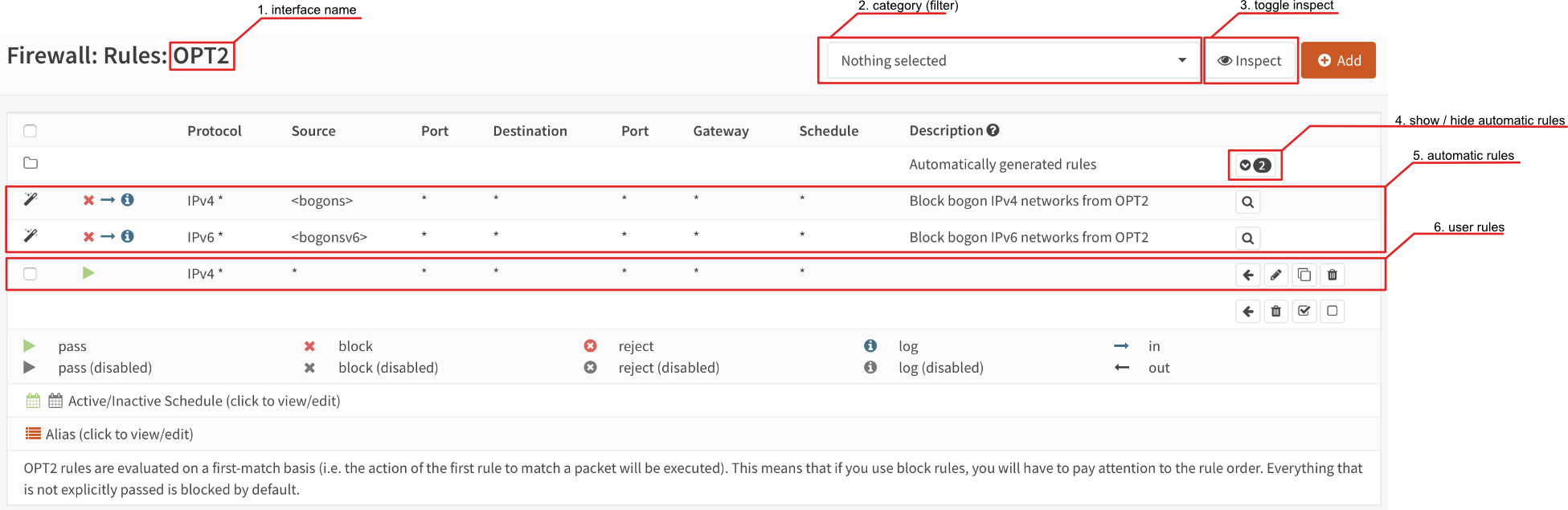
Below you will find some highlights about this screen.
- Interface name
The name of the interface is part of the normal menu breadcrumb
- Category
If categories are used in the rules, you can select which one you will show here.
- Toggle inspection
You can toggle between inspection and rule view here, when in inspection mode, statistics of the rule are shown. (such as packet counters, number of active states, …)
- Show / hide automatic rules
Some rules are automatically generated, you can toggle here to show the details. If a magnifying glass is shown you can also browse to its origin (The setting controlling this rule).
- Automatic rules
The contents of the automatic rules
- User rules
All user defined rules
Settings
Traffic that is flowing through your firewall can be allowed or denied using rules, which define policies. This section of the documentation describe the different settings, grouped by usage.
Some settings help to identify rules, without influencing traffic flow.
Option |
Description |
|---|---|
Category |
The category this rule belongs to, can be used as a filter in the overview |
Description |
Descriptive text |
Below are the settings most commonly used:
Option |
Description |
|---|---|
Action |
The action to perform. |
Disabled |
Disable a rule without removing it, can be practical for testing purposes and to support easy enablement of less frequently used policies. |
Interface |
Interface[s] this rule applies on. You can easily copy rules between interfaces and change this field to the new target interface. (remember to check the order before applying) |
TCP/IP Version |
Does this rule apply on IPv4, IPv6 or both. |
Protocol |
Protocol to use, most common are TCP and UDP |
Source |
Source network or address, when combining IPv4 and IPv6 in one rule, you can use aliases which contain both address families. You can select multiple sources per rule. |
Source / Invert |
Invert source selection (for example not 192.168.0.0/24) You can only invert single sources. |
Destination |
Destination network or address, like source you can use aliases here as well. You can select multiple destinations per rule. |
Destination / Invert |
When the filter should be inverted, you can mark this checkbox. You can only invert single destinations. |
Destination port range |
For TCP and/or UDP you can select a service by name (http, https) or number (range), you can also use aliases here to simplify management. |
Log |
Create a log entry when this rule applies, you can use to monitor if your rule applies. |
Tip
The use of descriptive names help identify traffic in the live log view easily.
Tip
You can select multiple sources or destinations per rule, yet keep in mind that a nested alias might be the better choice. This feature is most useful if you plan to create security zones.
When a firewall rule needs to be constrained in terms of the number of packets it may process over time, it’s possible to combine the rule with the traffic shaper.
The process of shaping is explained in the Traffic Shaping section of our documentation. Below you will find the relevant properties for the firewall rule.
Option |
Description |
|---|---|
Traffic shaping/rule direction |
Force packets being matched by this rule into the configured queue or pipe |
Traffic shaping/reverse direction |
Force packets being matched in the opposite direction into the configured queue or pipe |
Tip
Filter rules are more flexible than the ones specified in the shaper section itself as these can be combined with aliases as well. Although this feature is quite new, it’s certainly worth looking at when in need of a traffic shaper.
Some settings are usually best left default, but can also be set in the normal rule configuration.
Option |
Description |
|---|---|
Source port range |
In case of TCP and/or UDP, you can also filter on the source port (range) that is
used by the client. Since in most cases you can’t influence the source port,
this setting is usually kept default ( |
Quick |
If a packet matches a rule specifying quick, the first matching rule wins. When not set to quick the last matching rule wins. When not sure, best use quick rules and interpret the ruleset from top to bottom. |
Direction |
Direction of the traffic, see also Direction. |
The following options are specifically used for HA setups.
Option |
Description |
|---|---|
No XMLRPC Sync |
Disable configuration sync for this rule, when Firewall Rules sync is enabled in |
State Type / NO pfsync |
Prevent states created by this rule to be synced to the other node |
Rules can also be scheduled to be active at specific days or time ranges, you can create schedules in and select one in the rule.
This feature can be used to forward traffic to another gateway based on more fine grained filters than static routes could (OSI layer 4 verses OSI layer 3) and can be used to build multi-wan scenario’s using gateway groups.
More information about Multi-Wan can be found in the “Multi WAN” chapter.
Option |
Description |
|---|---|
Gateway |
When a gateway is specified, packets will use policy based routing using the specified gateway or gateway group. Usually this option is set on the receiving interface (LAN for example), which then chooses the gateway specified here. (This ignores default routing rules). Only packets flowing in the same direction of the rule are affected by this parameter, the opposite direction (replies) are not affected by this option. |
reply-to |
By default traffic is always send to the connected gateway on the interface. If for some reason you don’t want to force traffic to that gateway, you can disable this behaviour or enforce an alternative target here. |
Note
When using policy based routing, don’t forget to exclude local traffic which shouldn’t be forwarded.
You can do so by creating a rule with a higher priority, using a default gateway.
Tip
In our experience the packet capture function () can be a valuable tool to inspect if traffic is really heading the direction you would expect it to go, just choose a host to monitor and try to exchange some packets. When selecting all interfaces, it’s easy to see where traffic headed.
The advanced options contains some settings to limit the use of a rule or specify specific timeouts for the it. Most generic (default) settings for these options can be found under
Option |
Description |
|---|---|
Max states |
Limits the number of concurrent states the rule may create. When this limit is reached, further packets that would create state will not match this rule until existing states time out. |
Max source nodes |
Limits the maximum number of source addresses which can simultaneously have state table entries. |
Max established |
Limits the maximum number of simultaneous TCP connections which have completed the 3-way handshake that a single host can make. |
Max source states |
Limits the maximum number of simultaneous state entries that a single source address can create with this rule. |
Max new connections |
Limit the rate of new connections over a time interval. The connection rate is an approximation calculated as a moving average. (number of connections / seconds) Only applies on TCP connections |
State timeout |
State Timeout in seconds (applies to TCP only) |
Some less common used options are defined below.
Option |
Description |
|---|---|
Source OS |
Operating systems can be fingerprinted based on some tcp fields from the originating connection. These fingerprints can be used as well to match traffic on. (more detailed information can be found in the pf.os man page) |
allow options |
By default the firewall blocks IPv4 packets with IP options or IPv6 packets with routing extension headers set. If you have an application that requires such packets (such as multicast or IGMP) you can enable this option. |
TCP flags |
If specific TCP flags need to be set or unset, you can specify those here. |
Set priority |
Packets matching this rule will be assigned a specific queueing priority. If the packet is transmitted on a VLAN interface, the queueing priority will be written as the priority code point in the 802.1Q VLAN header. If two priorities are given, packets which have a TOS of lowdelay and TCP ACKs with no data payload will be assigned to the second one. |
Match priority |
Only match packets which have the given queueing priority assigned. |
Set local tag |
Packets matching this rule will be tagged with the specified string. The tag acts as an internal marker that can be used to identify these packets later on. This can be used, for example, to provide trust between interfaces and to determine if packets have been processed by translation rules. Tags are “sticky”, meaning that the packet will be tagged even if the rule is not the last matching rule. Further matching rules can replace the tag with a new one but will not remove a previously applied tag. A packet is only ever assigned one tag at a time. |
Match local tag |
Match packets that are tagged earlier (using set local tag) |
State Type |
Influence the state tracking mechanism used, the following options are available.
When in doubt, it’s usually best to preserve the default
|
Troubleshooting
While building your ruleset things can go wrong, it’s always good to know where to look for signs of an issue. One of the most common mistakes is traffic doesn’t match the rule and/or the order of the rule doesn’t make sense for whatever reason.
With the use of the “inspect” button, one can easily see if a rule is being evaluated and traffic did pass using this rule. It’s also possible to jump directly into the attached states to see if your host is in the list as expected.
Another valuable tool is the live log viewer, in order to use it, make sure to provide your rule with an easy to read description and enable the “log” option.
If your using source routing (policy based routing), debugging can sometimes get a bit more complicated. Since the normal system routing table may not apply, it helps to know which flow the traffic actually followed. The packet capture is a useful tool in that case.
Common issues in this area include return traffic using a different interface than the one it came into, since traffic follows the normal routing table on it’s way out (reply-to issue), or traffic leaving the wrong interface due to overselection (matching internal traffic and forcing a gateway).
Inspecting used netmasks is also a good idea, intending to match a host but providing a subnet is a mistake easily made
(e.g. 192.168.1.1/32 vs 192.168.1.1/24 is in reality all of 192.168.1.x).
Last but not least, remember rules are matched in order and the default (inbound) policy is block if nothing else
is specified, since we match traffic on inbound, make sure to add rules where traffic originates from
(e.g. lan for traffic leaving your network, the return should normally be allowed by state).